How-to guide
How to Set Up a Fixed Amount ($ Off) Discount on Shopify
A fixed amount discount is a Discount Code promo with Discount Type set to Fixed Amount, a flat $5, $10 or $25 off. This guide creates $10 Off Hoodies, code HOODIE10, on the Hoodies collection with a $50 minimum purchase.
6 steps About 3 min
When to Use It
Use a fixed amount when a percentage either gives away too much on high-priced items or means nothing on low-priced ones. A flat number is also easier to say in a banner or an email.
- Offers on a narrow price band, such as one collection
- Threshold deals like $10 off orders over $50
- Promos where the headline needs to be a number, not a percent
Set It Up in 6 Steps
Open Create Promo from the Dashboard
Sign in to PromoOS and click Create Promo in the header. The Create Promotion dialog opens on the Promo Type step.
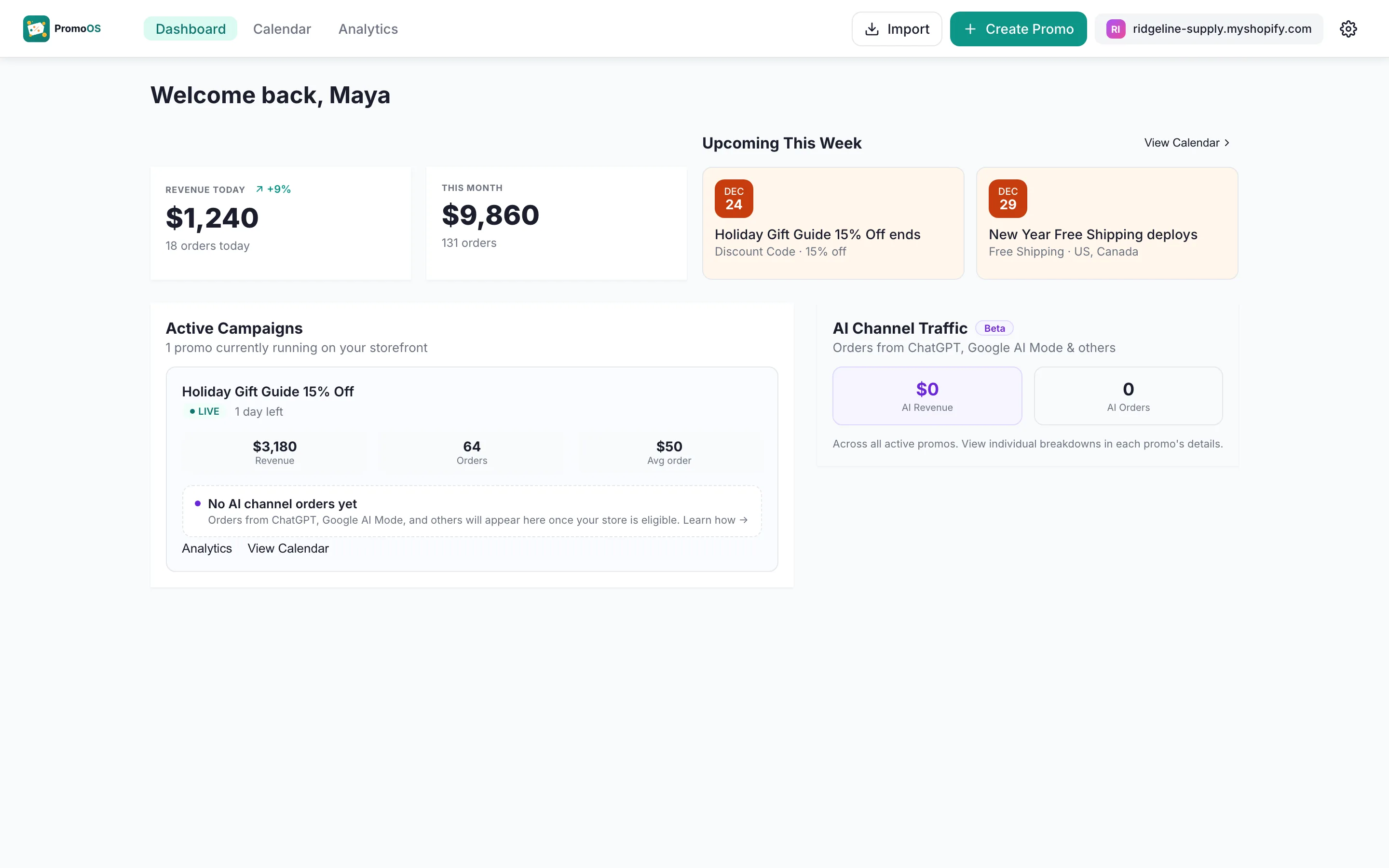
The Dashboard with Create Promo in the top right Choose Discount Code
The first step asks how the promo should apply. Choose Discount Code: shoppers enter a code at checkout, and product-page prices stay unchanged until then. You can add an optional revenue goal here, then click Next.
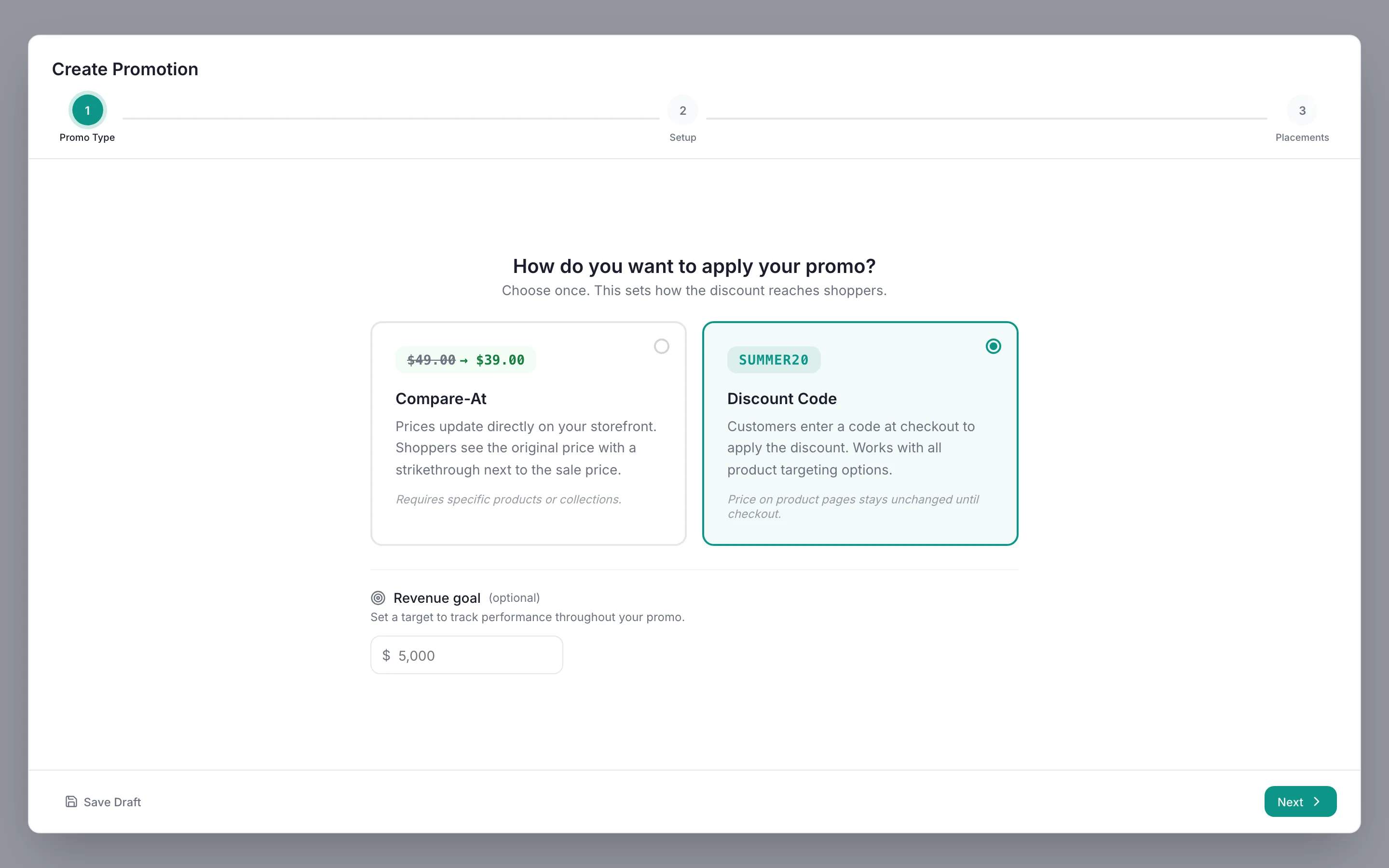
Promo Type step with Discount Code selected Name it and set the dates
In Basic Information, enter the Promo Name, leave Promo Type as Discount, and set the Start Date, End Date and times. Those dates are the schedule: PromoOS activates the code at the start and stops it at the end.
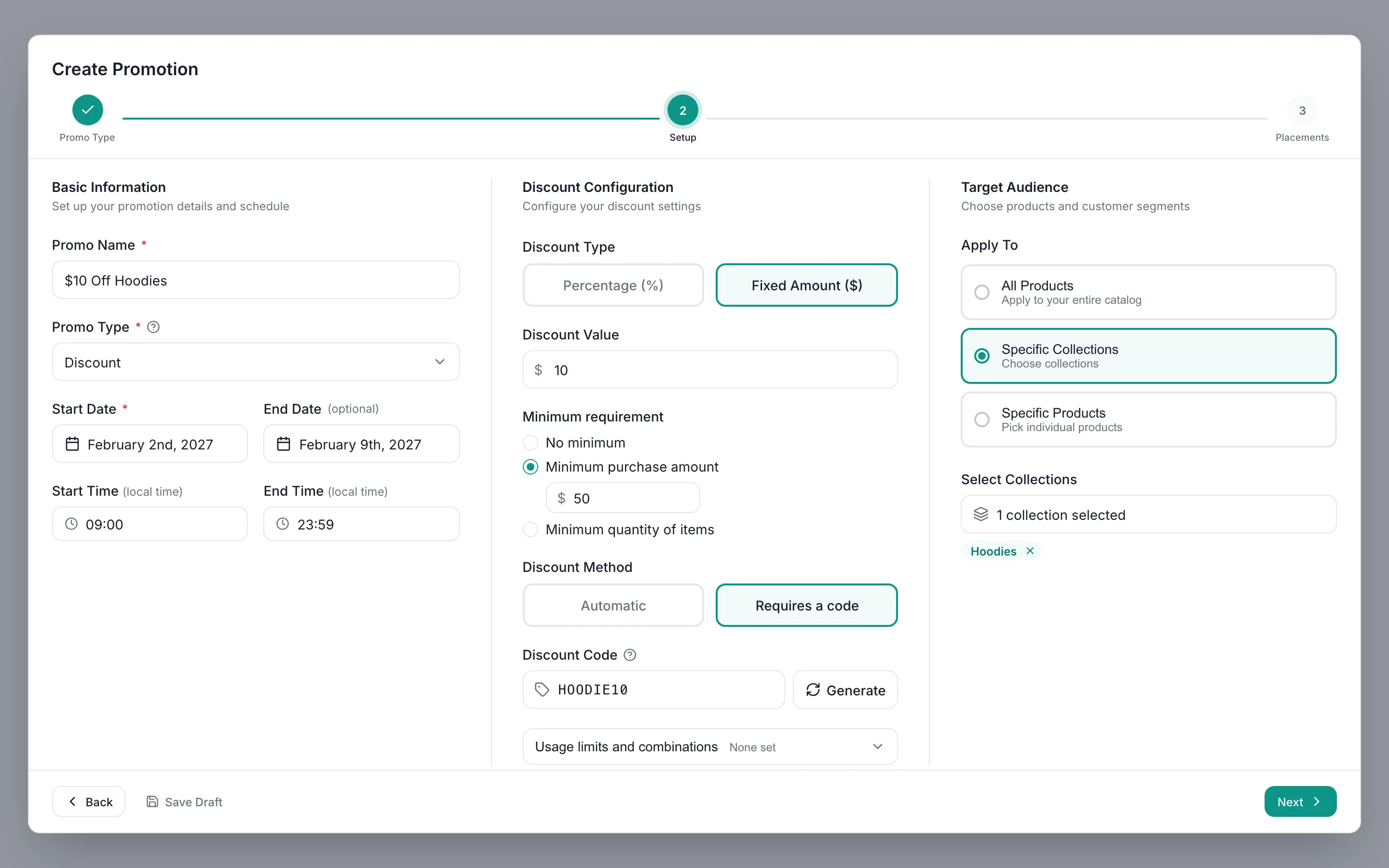
Setup step with the name, dates, fixed amount and collection filled in Choose Fixed Amount and enter 10
In Discount Configuration, click Fixed Amount ($) and type 10 in Discount Value. Under Minimum requirement, choose Minimum purchase amount and enter 50 so the code only works on orders of $50 or more. Keep Requires a code and type HOODIE10.
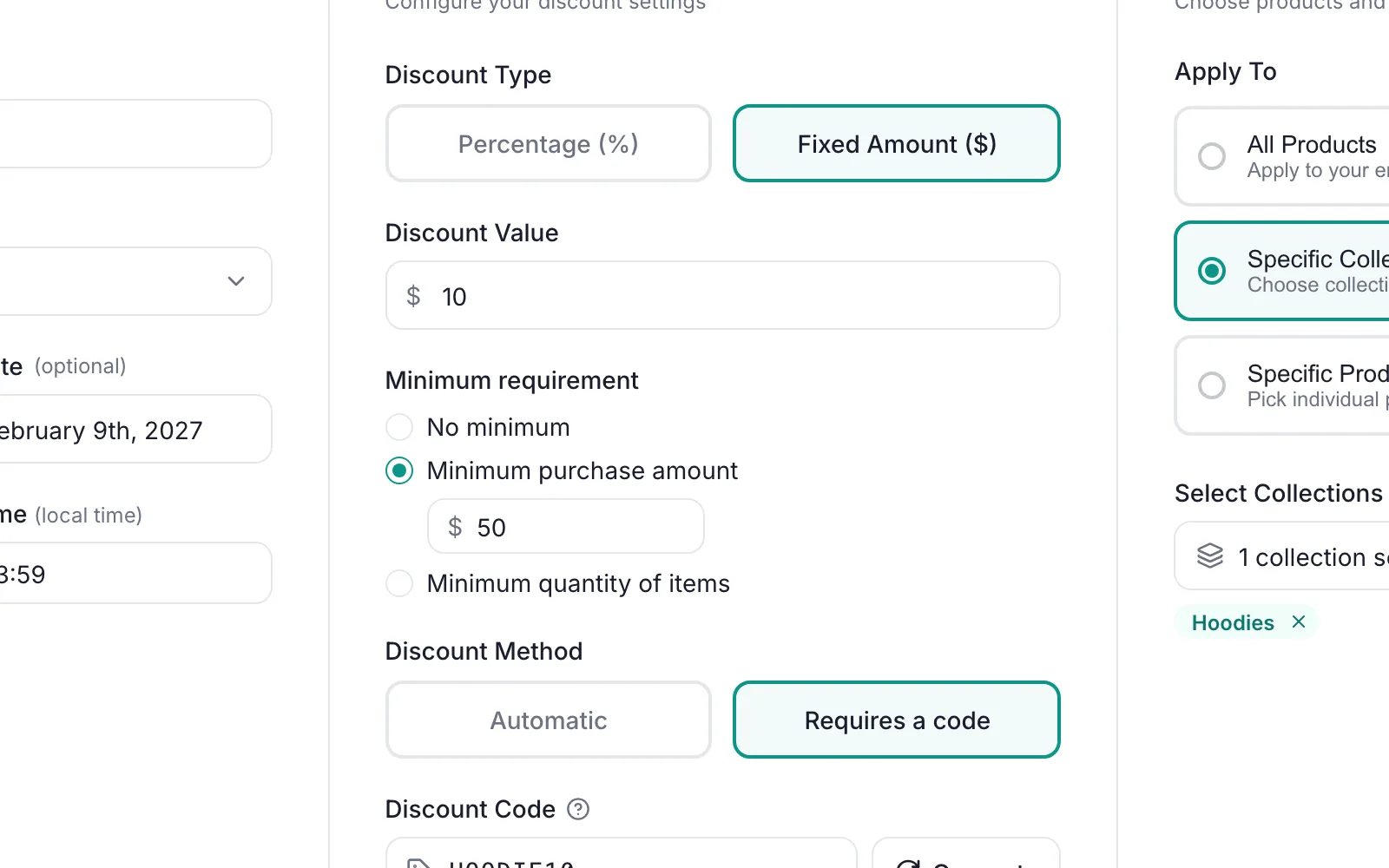
Discount Configuration with Fixed Amount, 10, a $50 minimum and the code Choose the Hoodies collection
In Target Audience, click Specific Collections, then Select Collections and pick Hoodies. The chosen collection appears as a chip under the button. The code applies only to items in that collection.
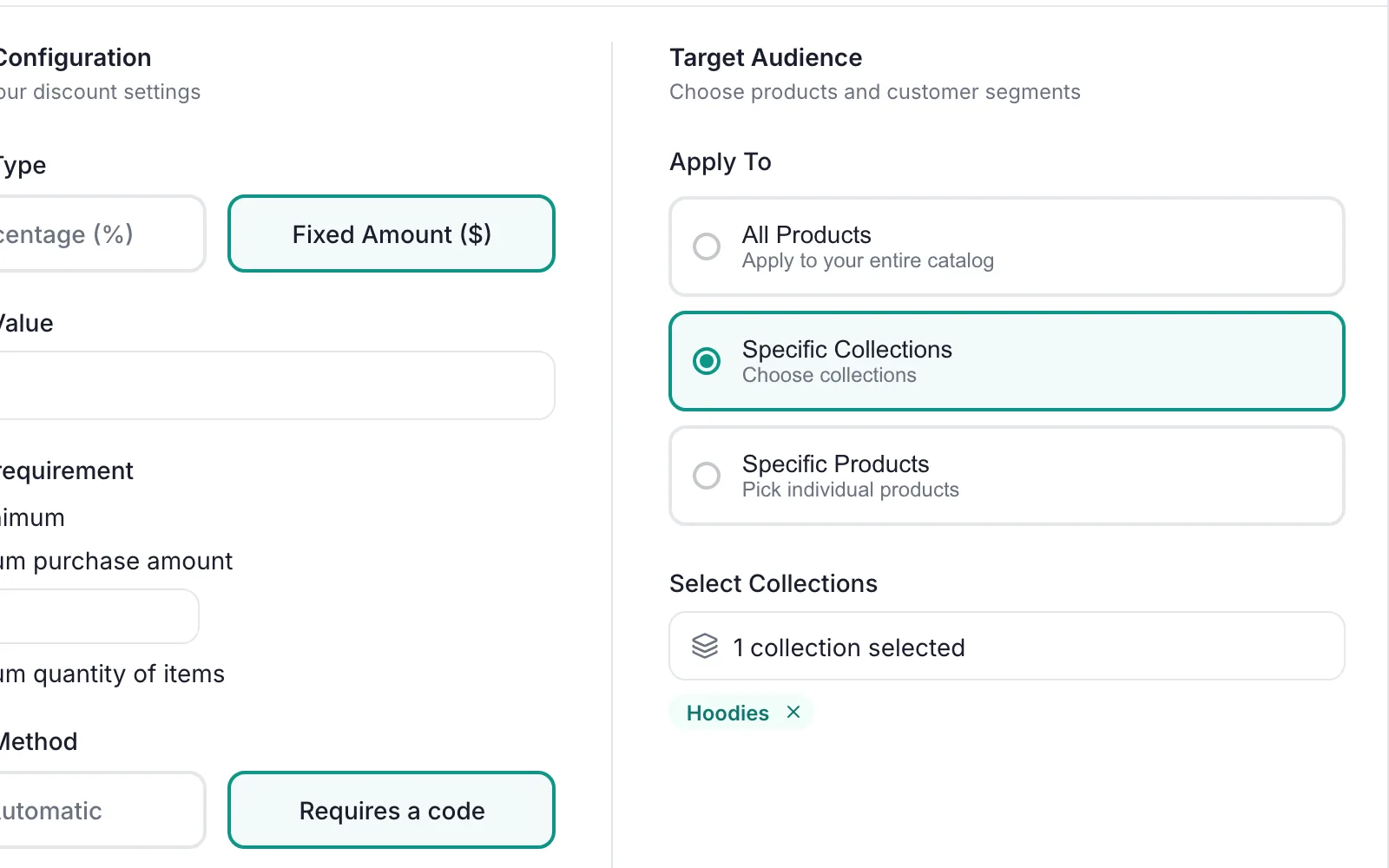
Target Audience set to Specific Collections with Hoodies selected Add a banner, then click Create Promo
The Placements step is optional. Toggle an Announcement Bar or Hero Section on any store page to show $10 Off Hoodies on your storefront, or leave every placement off. Click Create Promo. A future start date saves the promo as Scheduled and PromoOS activates it on time.
Note
Banners need the PromoOS theme block added to your theme once. The Placements step links to the instructions, and the Help Center walks through it.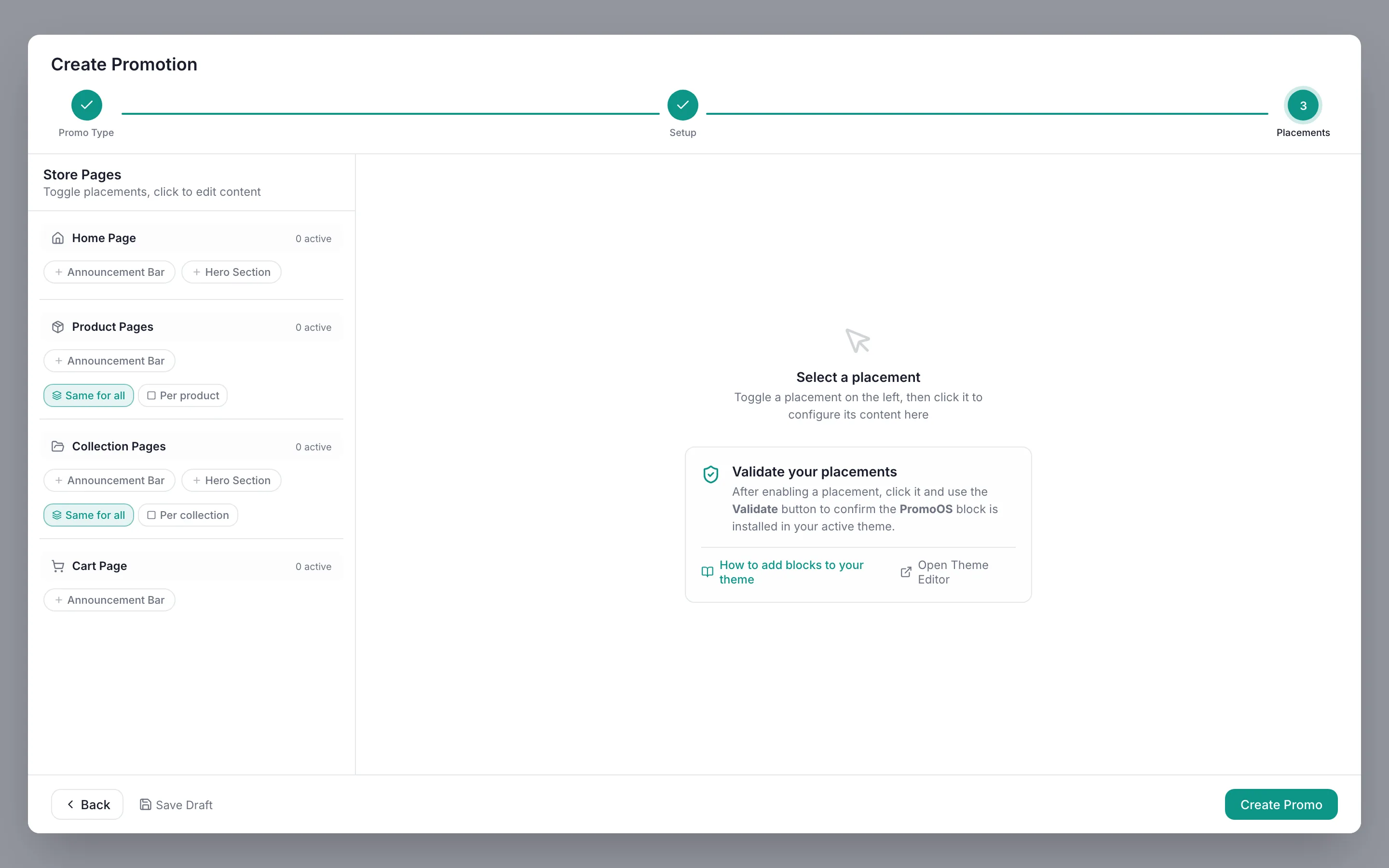
Placements step before any banner is added, with Create Promo ready
What Shoppers See
- Hoodie prices stay unchanged on product pages
- At checkout, HOODIE10 takes $10 off once the order reaches $50
- Orders under $50, or without hoodies, get no discount
Questions
Related Guides
Set up a percentage discount
A percent-off code with a start and end date, targeting all products or a subset.
Schedule a sale in advance
Set the dates once. PromoOS activates the sale, flags product overlaps, and ends it on time.
Also useful: All promo types in the Help CenterPromo cost calculator
Free plan · No credit card
Set up your next promo in PromoOS.
Free plan: up to 3 promos, 1 active at a time, no credit card. Upgrade only if you outgrow it.
Install PromoOS free