How-to guide
How to Schedule a Shopify Sale in Advance
Every promo type is scheduled the same way: the Start Date and End Date in the Setup step are the schedule, and PromoOS deploys and reverts on its own. This guide follows Winter Sale 20% Off, the promo from the percentage discount guide, from dates to a live campaign.
6 steps About 4 min
When to Use It
Schedule a sale whenever the start or end falls outside your working hours, or whenever more than one promo is in play and you want the calendar to catch overlaps before shoppers do.
- Midnight or early-morning launches you do not want to babysit
- Seasonal calendars planned weeks ahead
- Stores running more than one promo at a time
Set It Up in 6 Steps
Open Create Promo from the Dashboard
Sign in to PromoOS and click Create Promo in the header. Scheduling is not a separate mode. It is part of building any promo, so the flow starts in the same dialog.
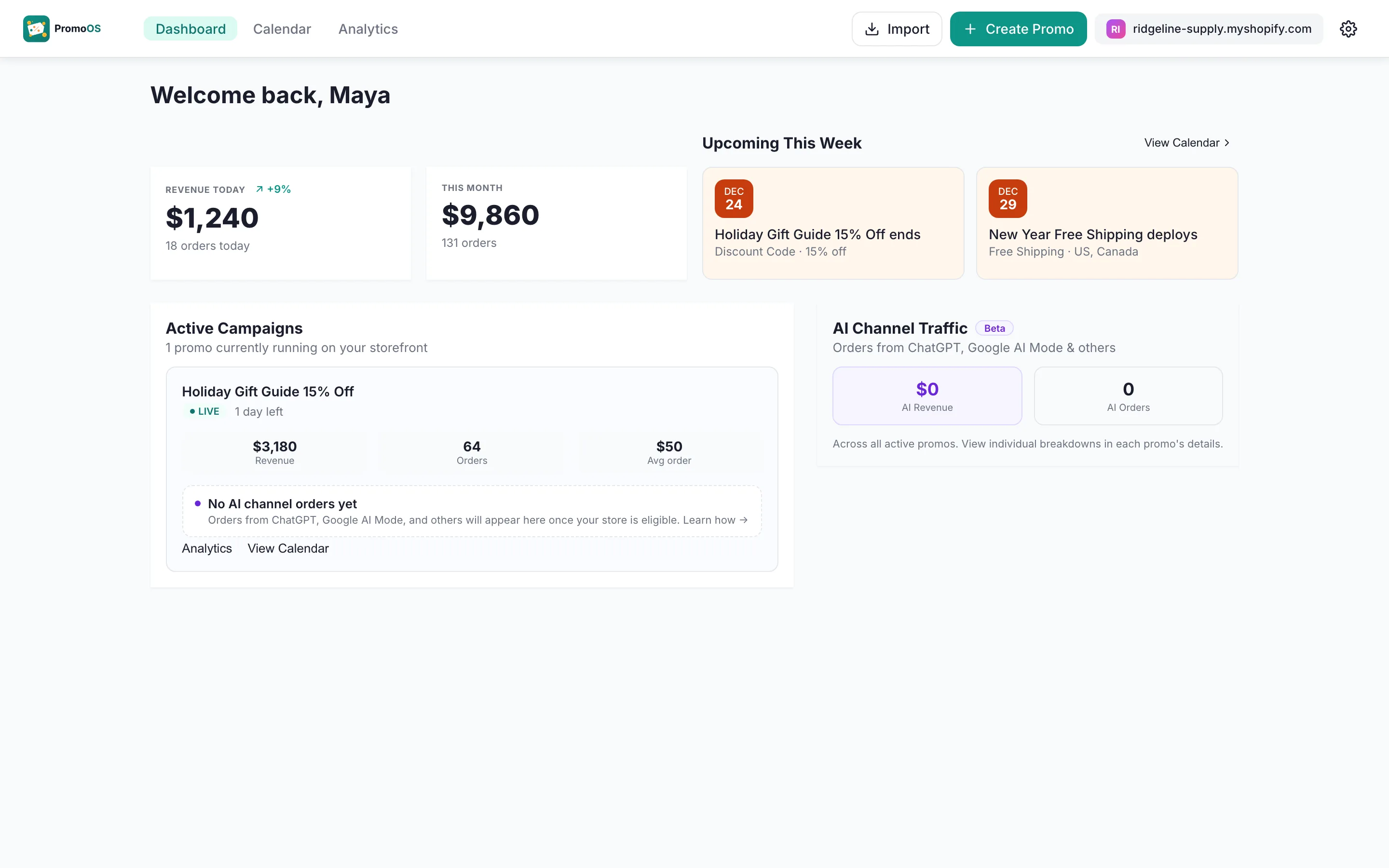
The Dashboard with Create Promo in the top right Set the start and end dates
In Basic Information on the Setup step, set Start Date, Start Time, End Date and End Time in your store's local time. A start in the future saves the promo as Scheduled when you create it. Leave End Date empty for an open-ended promo.
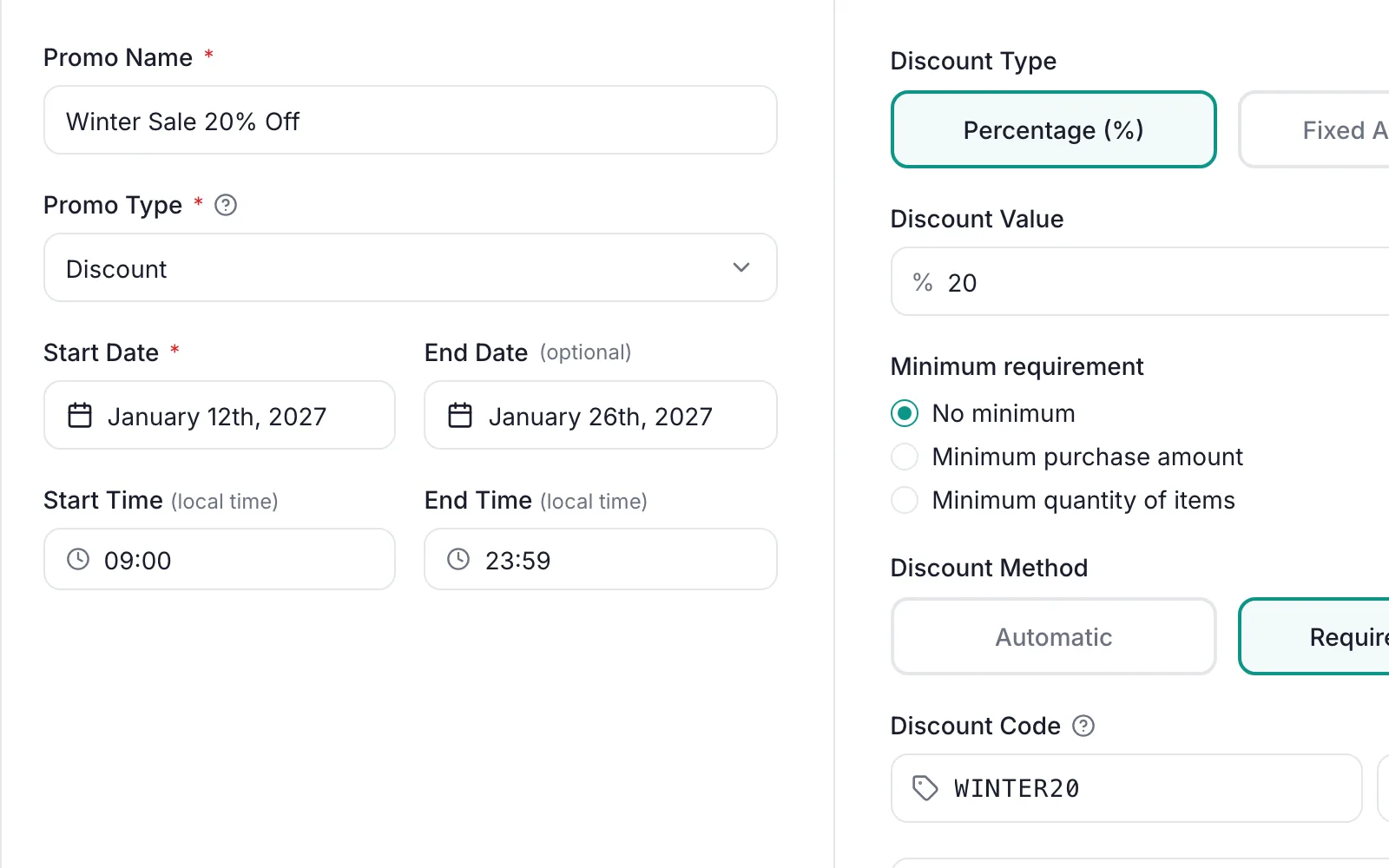
Basic Information with the start and end dates and times set Create the promo and check for conflicts
Finish the Setup and Placements steps and click Create Promo. PromoOS then checks the new promo against every promo that shares its dates, by product, not by date. The Discount conflict detected dialog opens only when the same items would carry two discounts at once, since Shopify applies one of them at checkout. Here the sitewide Winter Sale overlapped Hoodie Week 15% Off on the Hoodies collection. Edit Promo reopens the promo you saved to narrow the products or move the dates; Keep As Is leaves both in place. Hoodie Week was the one to move, so it went to February from the Calendar.
Heads up
Separate products never conflict: two discount codes on different products can run the same week with no effect on each other's revenue, so nothing is flagged. The Date conflict notice under the times in Basic Information only means another promo shares those dates.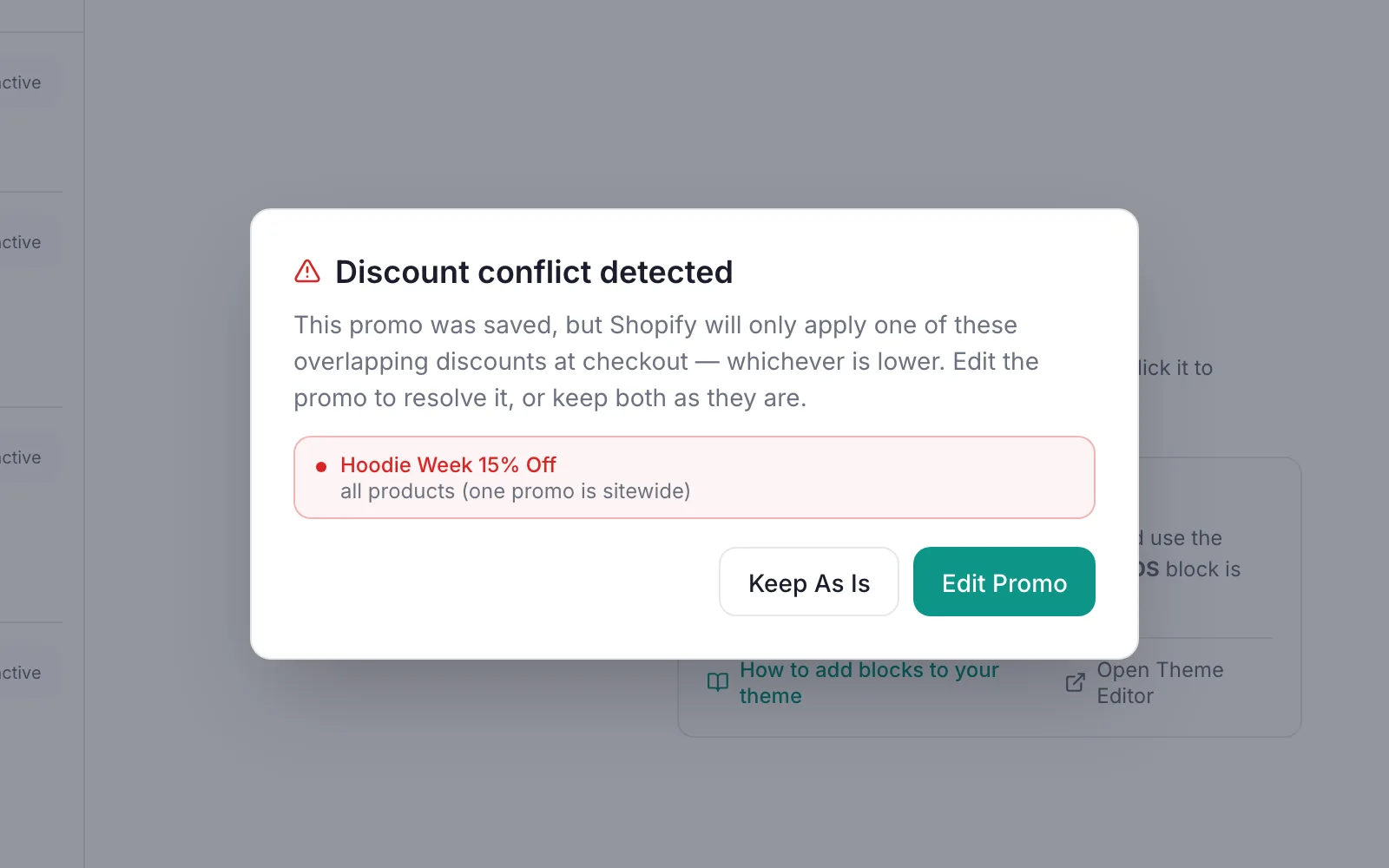
The Discount conflict detected dialog, listing the promo that shares products and dates Find the promo on the Calendar
The promo appears on the Calendar with a Scheduled pill on every day it covers, alongside anything else already planned for the month. New Year Free Shipping sits a week earlier and would not have been flagged even if the dates had overlapped: it is a shipping offer, not a second discount on the same items.
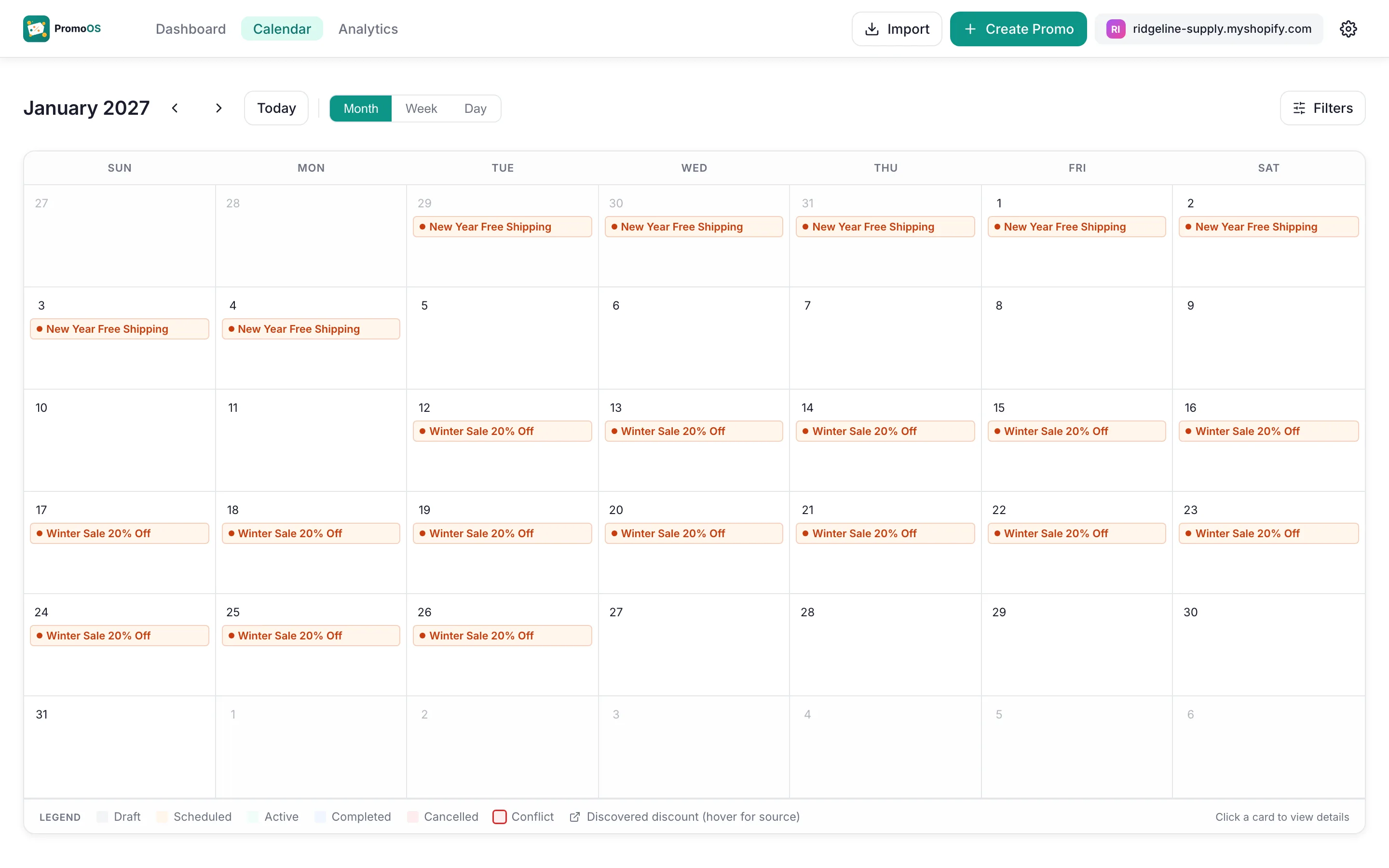
The Calendar with Winter Sale 20% Off scheduled for January 12 to 26 Open the promo to review it
Click the promo on the Calendar to open its details. The Scheduled badge, the discount, the code and the start and end times are all there, and Edit Promo stays available until the start time.
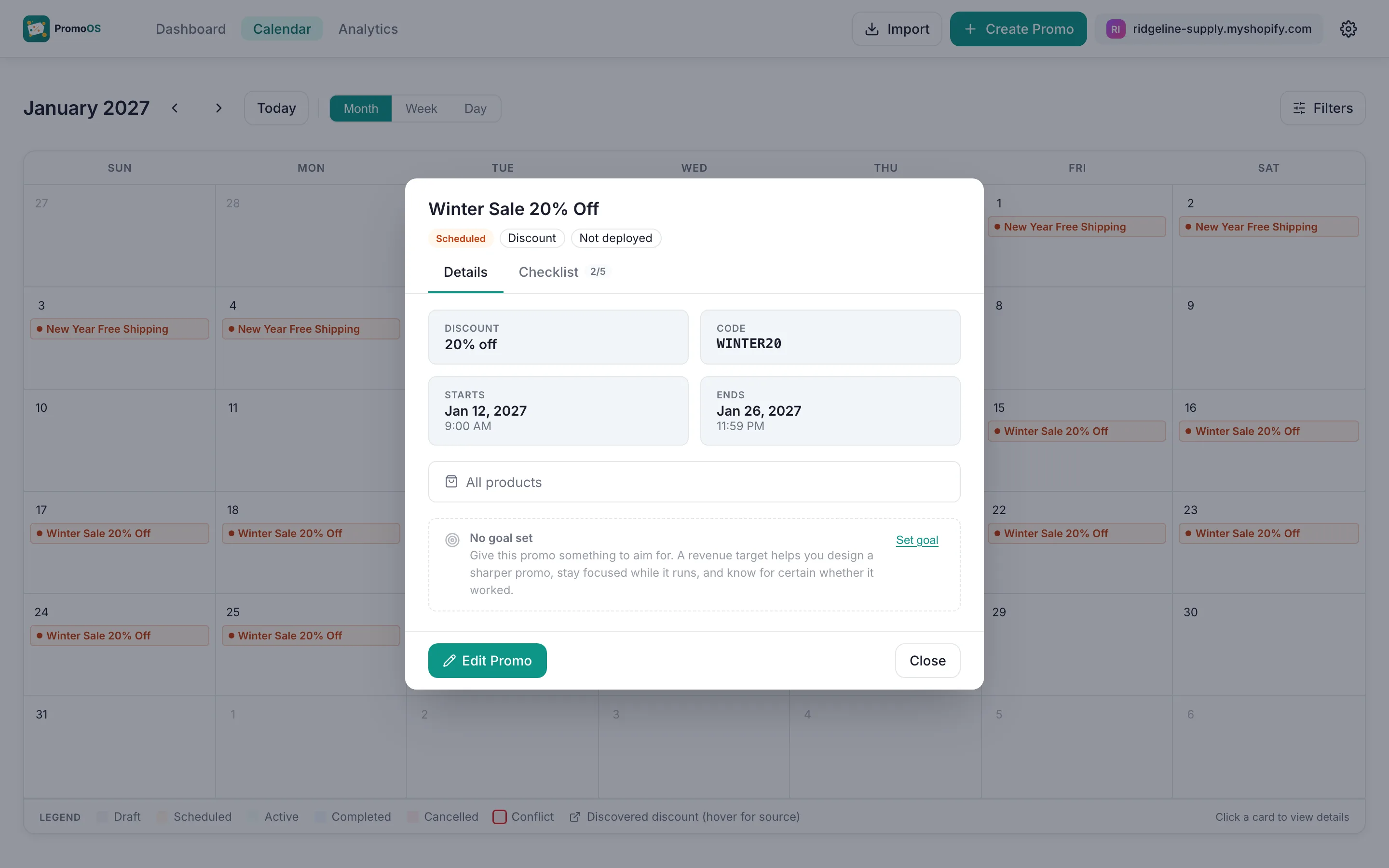
The promo details with the Scheduled badge and the dates Let PromoOS activate it on time
PromoOS checks for due promos every 5 minutes and deploys them itself: the discount code is created, targeting applied and any banners published. On January 12 the promo moves to Active and shows up under Active Campaigns on the Dashboard. At the end time it moves to Ended and reverts.
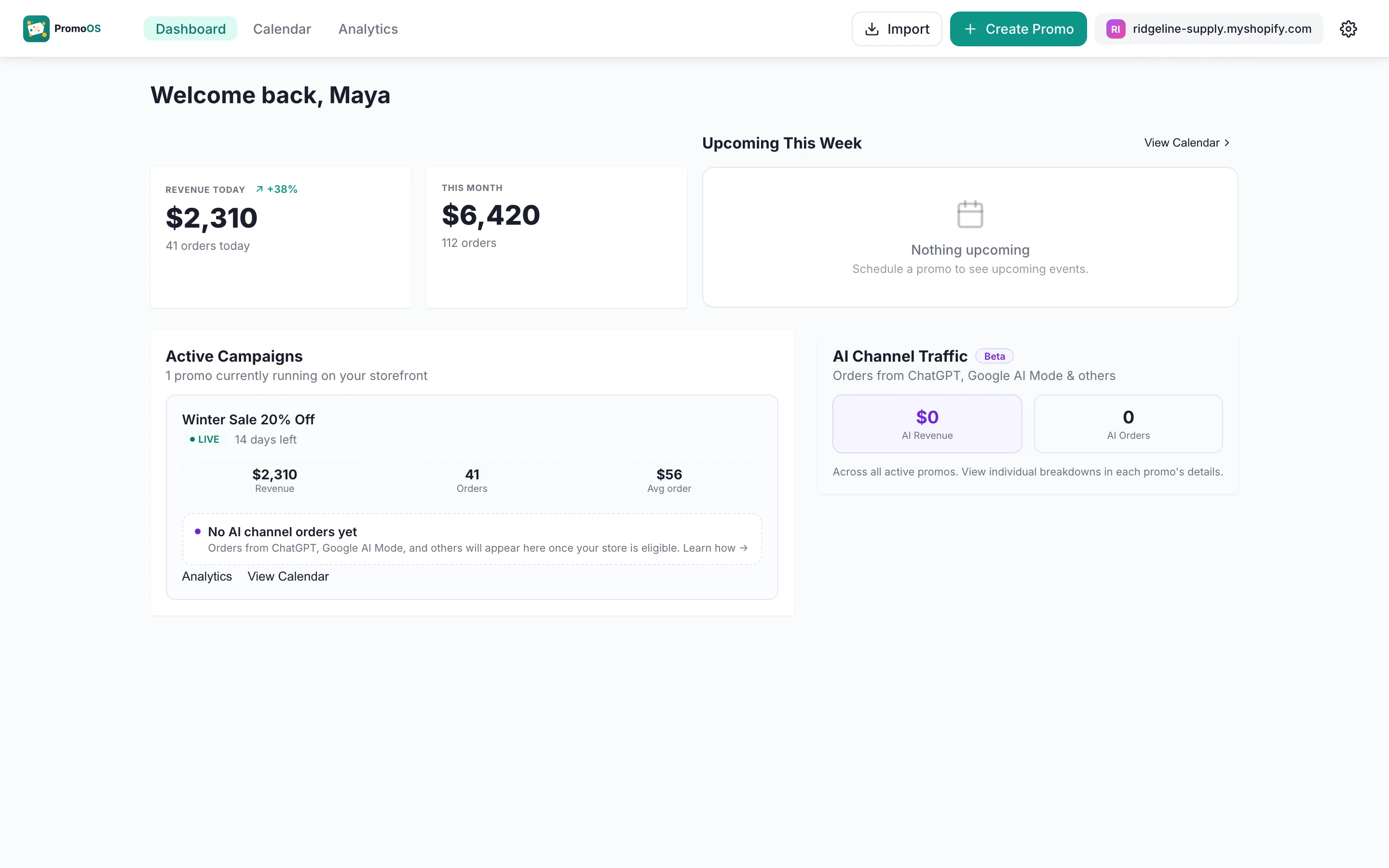
The Dashboard after the scheduler activated Winter Sale 20% Off
What Shoppers See
- Nothing changes on the storefront until the start time
- At the start time the discount works and any banners appear, without anyone signing in
- At the end time the discount stops, banners come down and compare-at prices are restored
Questions
Related Guides
Set up a percentage discount
A percent-off code with a start and end date, targeting all products or a subset.
Set up free shipping
Free shipping for chosen regions, optionally above a minimum order value.
Set up compare-at sale pricing
A crossed-out original price on the product page, no code, prices restored at the end.
Also useful: How deployment worksThe full guide to automating Shopify discounts
Free plan · No credit card
Set up your next promo in PromoOS.
Free plan: up to 3 promos, 1 active at a time, no credit card. Upgrade only if you outgrow it.
Install PromoOS free