How-to guide
How to Set Up a Free Shipping Promotion on Shopify
Free Shipping is its own promo type in PromoOS, set by shipping region and an optional minimum order value. This guide creates Free Shipping Weekend for US and Canada on orders of $50 or more, running Saturday January 30 to Sunday January 31.
5 steps About 3 min
When to Use It
Use free shipping when the cost of delivery, not the product price, is what stops people at checkout. A minimum order value turns it into a nudge toward a bigger basket.
- Weekend or holiday pushes where a percent off feels too heavy
- Threshold offers such as free shipping over $50
- Regions where shipping is a known objection
Set It Up in 5 Steps
Open Create Promo from the Dashboard
Sign in to PromoOS and click Create Promo in the header. The Create Promotion dialog opens on the Promo Type step.
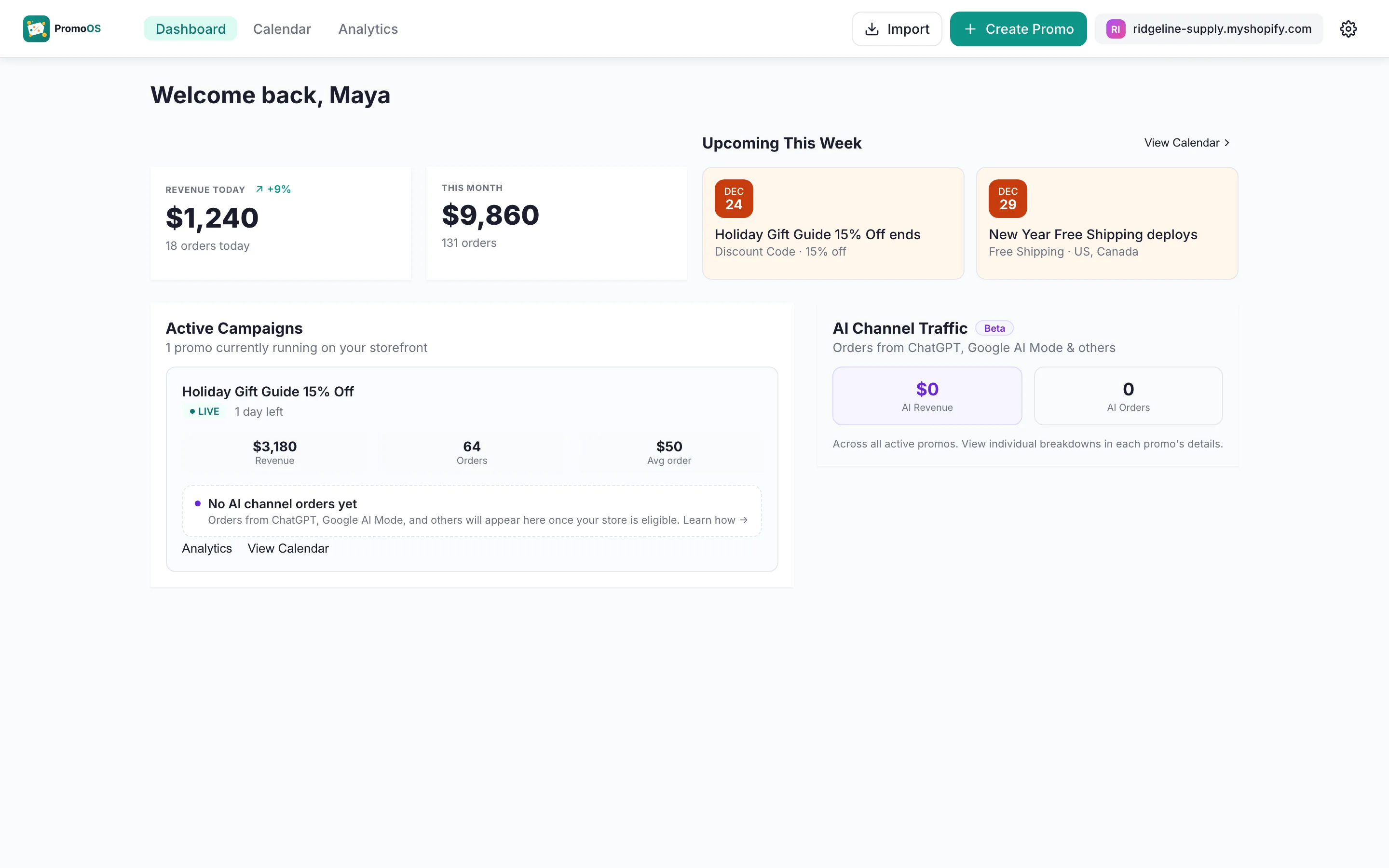
The Dashboard with Create Promo in the top right Choose Discount Code
The first step asks how the promo should apply. Choose Discount Code: shoppers enter a code at checkout, and product-page prices stay unchanged until then. You can add an optional revenue goal here, then click Next.
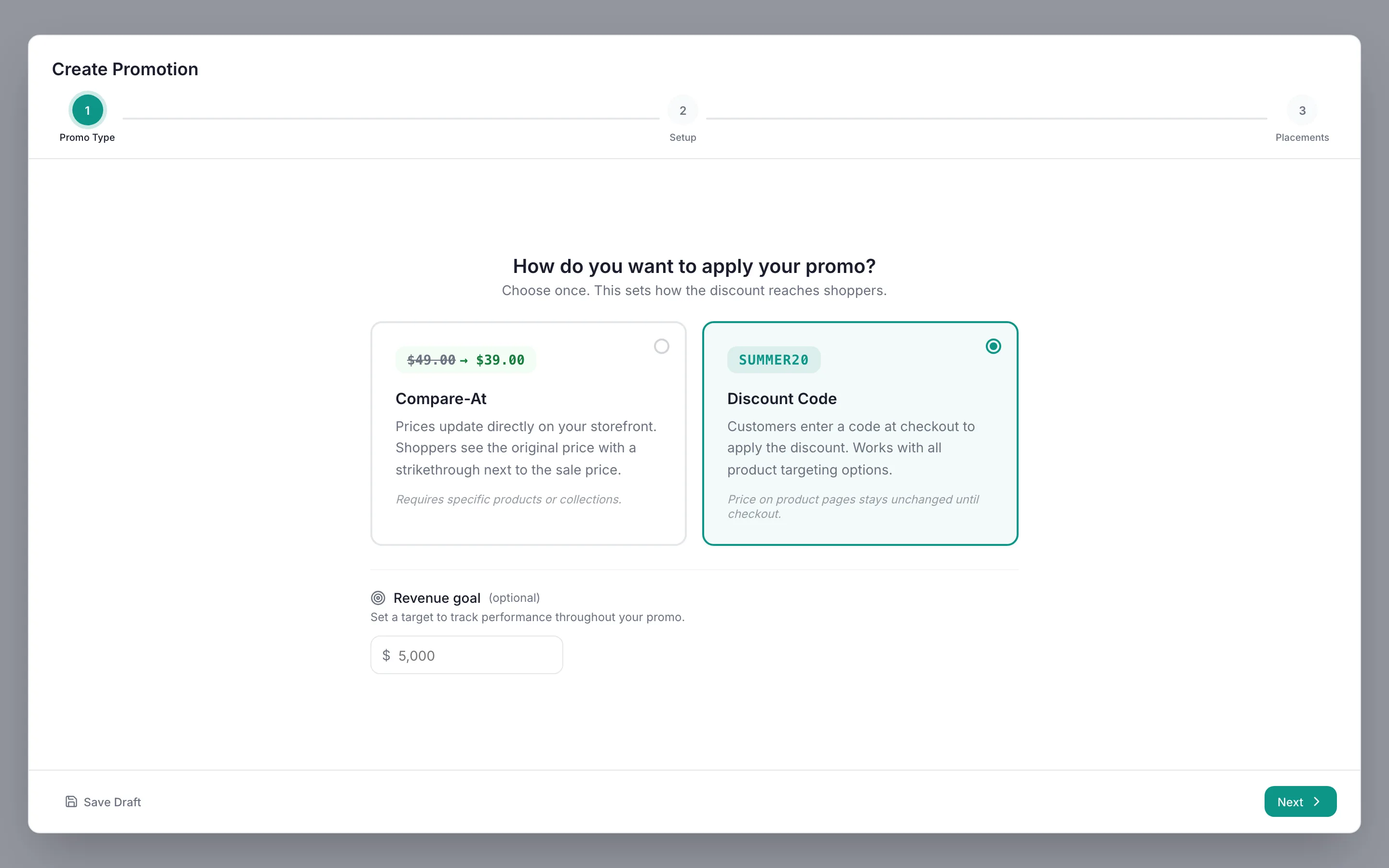
Promo Type step with Discount Code selected Pick Free Shipping and set the dates
In Basic Information, enter the Promo Name and change Promo Type to Free Shipping. Set the Start Date and End Date, here a Saturday and Sunday, and the times. The Discount Configuration column switches to shipping fields.
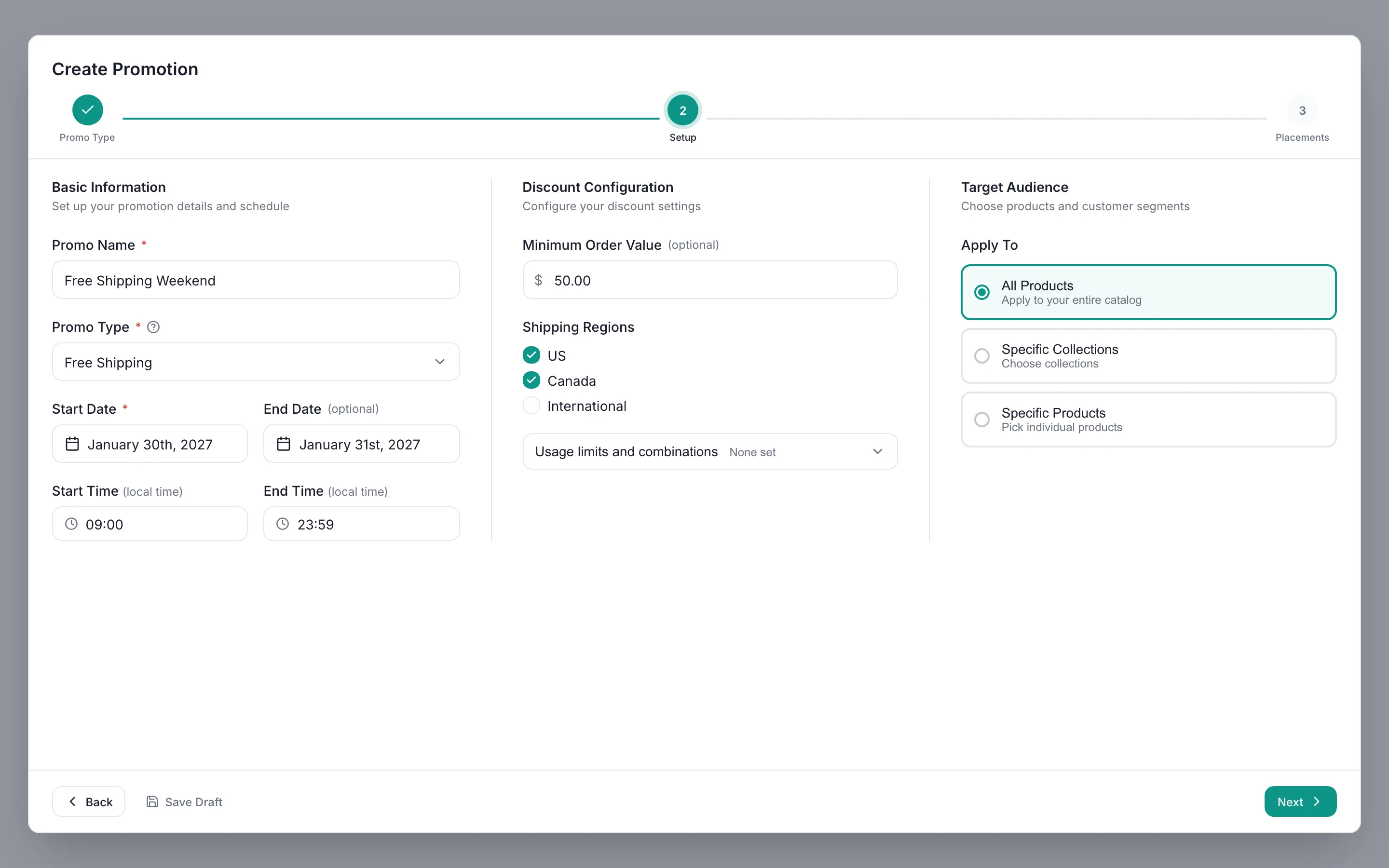
Setup step with Promo Type set to Free Shipping Pick the regions and a minimum order value
In Discount Configuration, tick the Shipping Regions the offer covers, here US and Canada. Enter 50.00 in Minimum Order Value so only orders of $50 or more ship free, or leave it empty for no threshold.
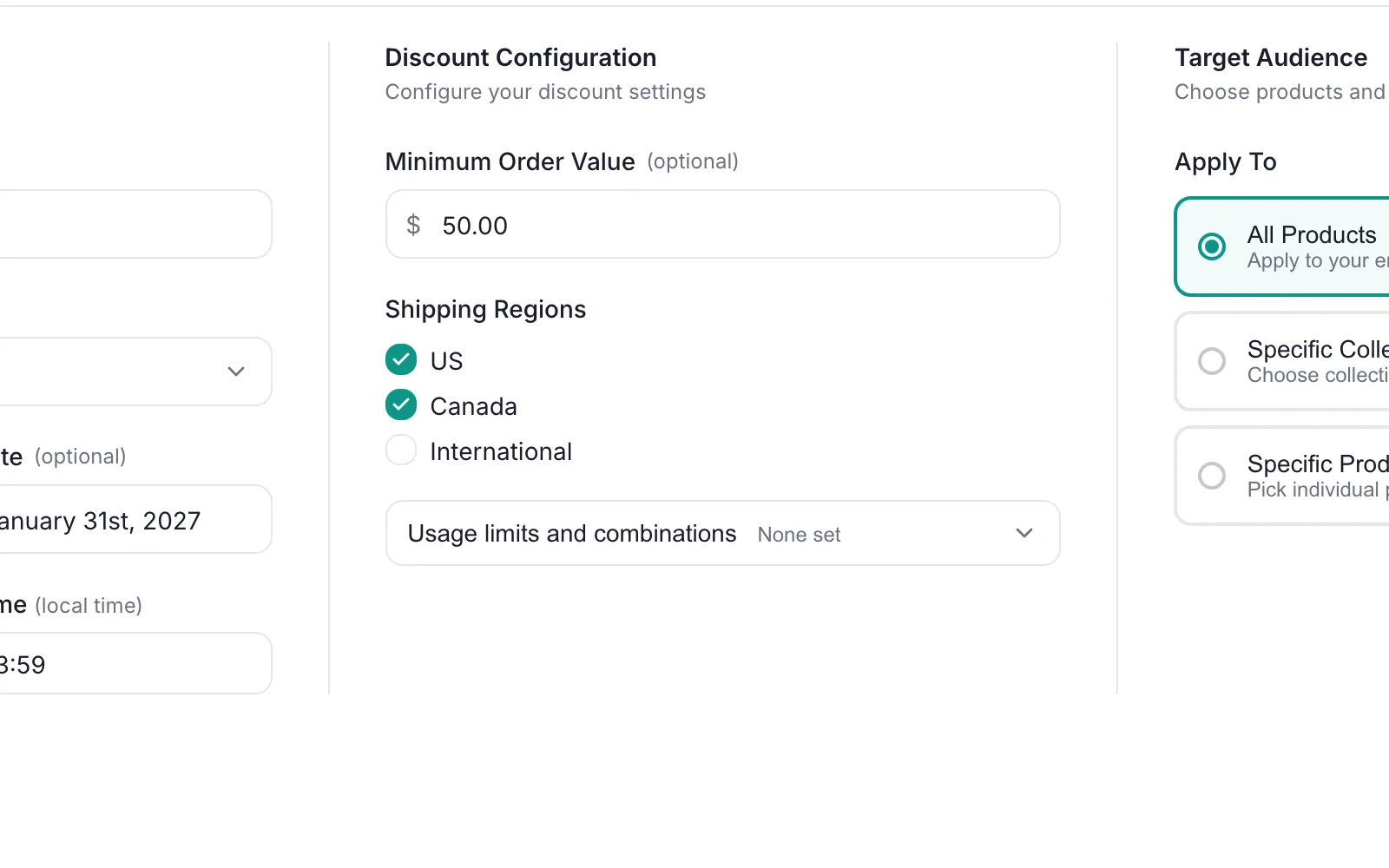
Minimum Order Value 50.00 with US and Canada selected Add a banner, then click Create Promo
The Placements step is optional. Toggle an Announcement Bar or Hero Section on any store page to show Free Shipping Weekend on your storefront, or leave every placement off. Click Create Promo. A future start date saves the promo as Scheduled and PromoOS activates it on time.
Note
Banners need the PromoOS theme block added to your theme once. The Placements step links to the instructions, and the Help Center walks through it.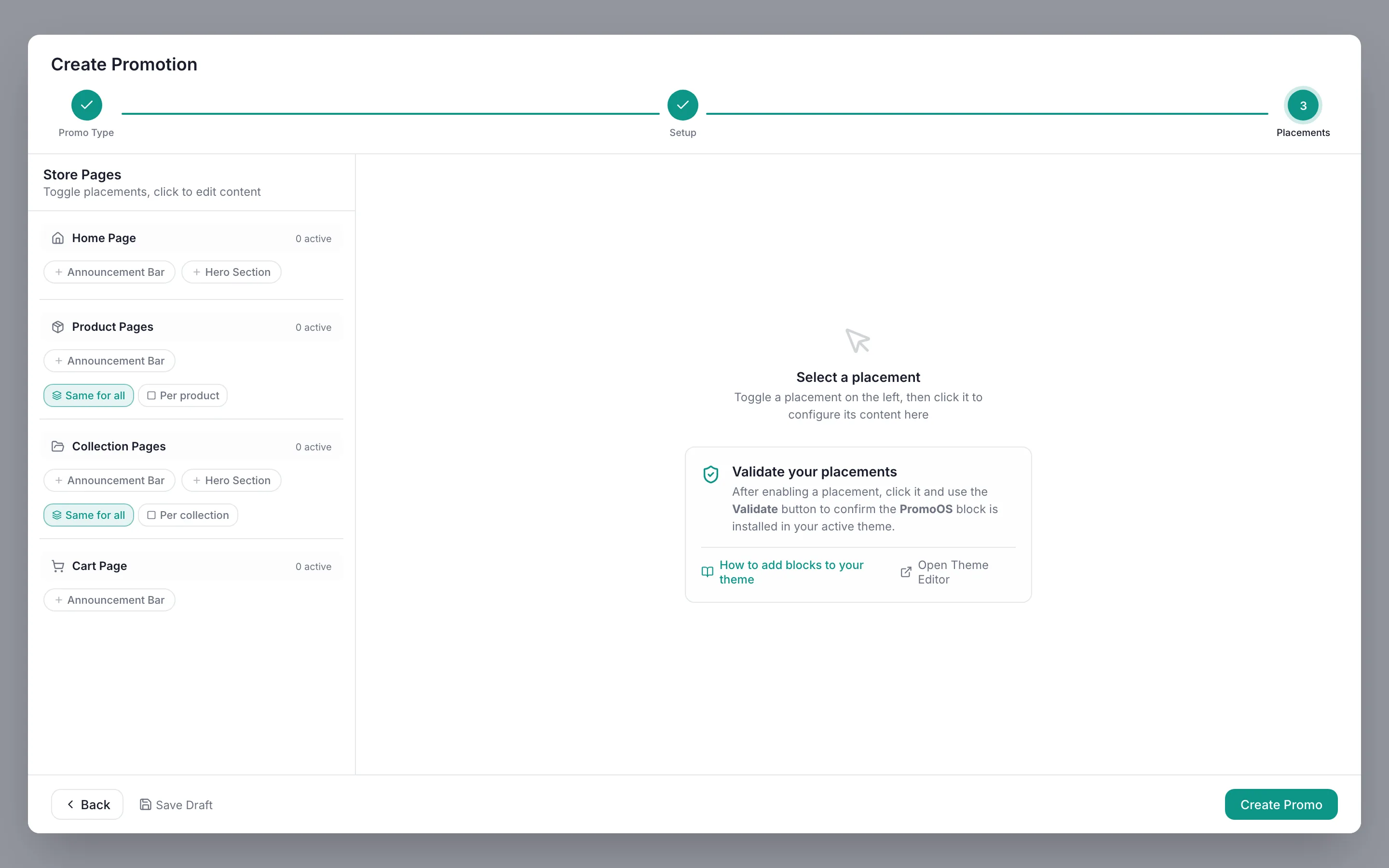
Placements step before any banner is added, with Create Promo ready
What Shoppers See
- Shipping to the US and Canada is free at checkout on orders of $50 or more
- Orders under $50, or shipping elsewhere, pay the normal rate
- The offer switches off on its own at the end time
Questions
Related Guides
Schedule a sale in advance
Set the dates once. PromoOS activates the sale, flags product overlaps, and ends it on time.
Set up a percentage discount
A percent-off code with a start and end date, targeting all products or a subset.
Also useful: All promo types in the Help CenterPromo cost calculator
Free plan · No credit card
Set up your next promo in PromoOS.
Free plan: up to 3 promos, 1 active at a time, no credit card. Upgrade only if you outgrow it.
Install PromoOS free